
Software for DTF Printing – Best Buyer’s Guide for 2025
Choose software for the actual printer and job
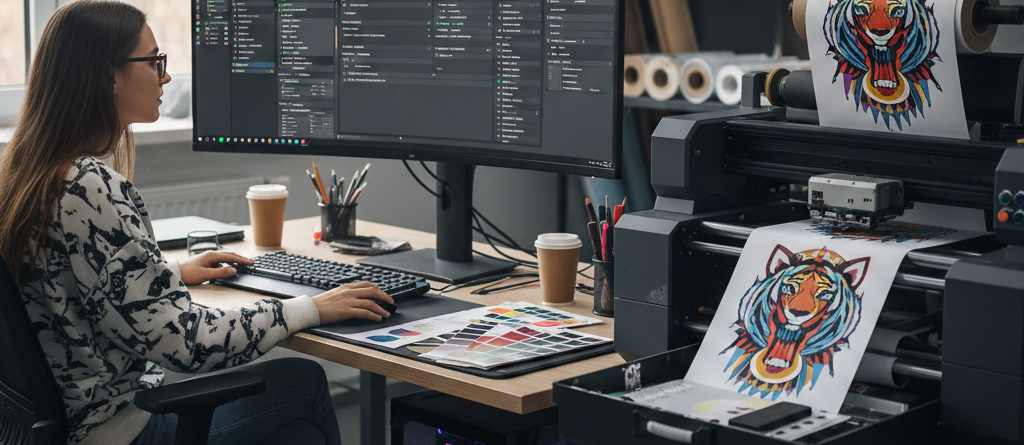
The right software for DTF printing helps prepare and manage a compatible production job. It can support artwork sizing, colour processing, white-layer handling and print queues where the particular edition and printer driver provide those functions.
Start with compatibility and a real transfer test. A software name alone does not establish support for your printer, and a new RIP cannot automatically correct missing nozzles, unsuitable film, uneven powder application or an incorrect cure.
Chat with our team for printers, consumables, film, powder and business setup guidance.
Where the software fits in garment DTF
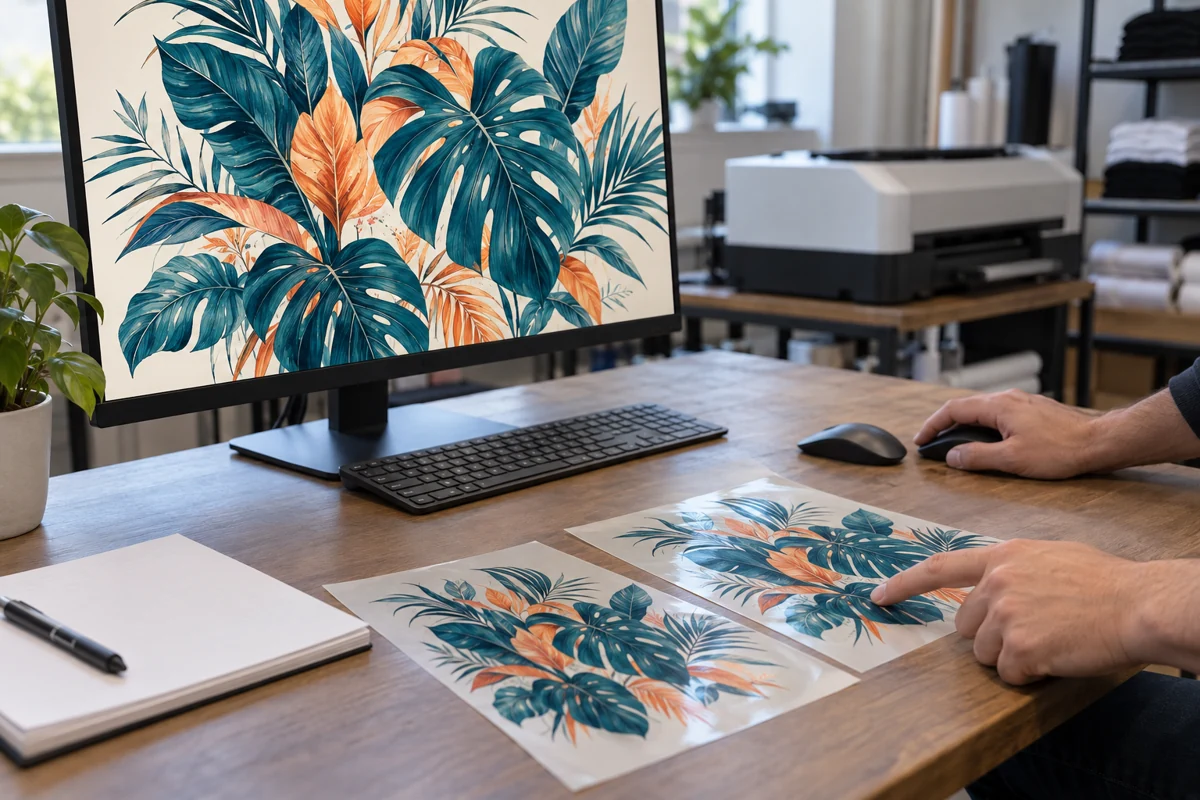
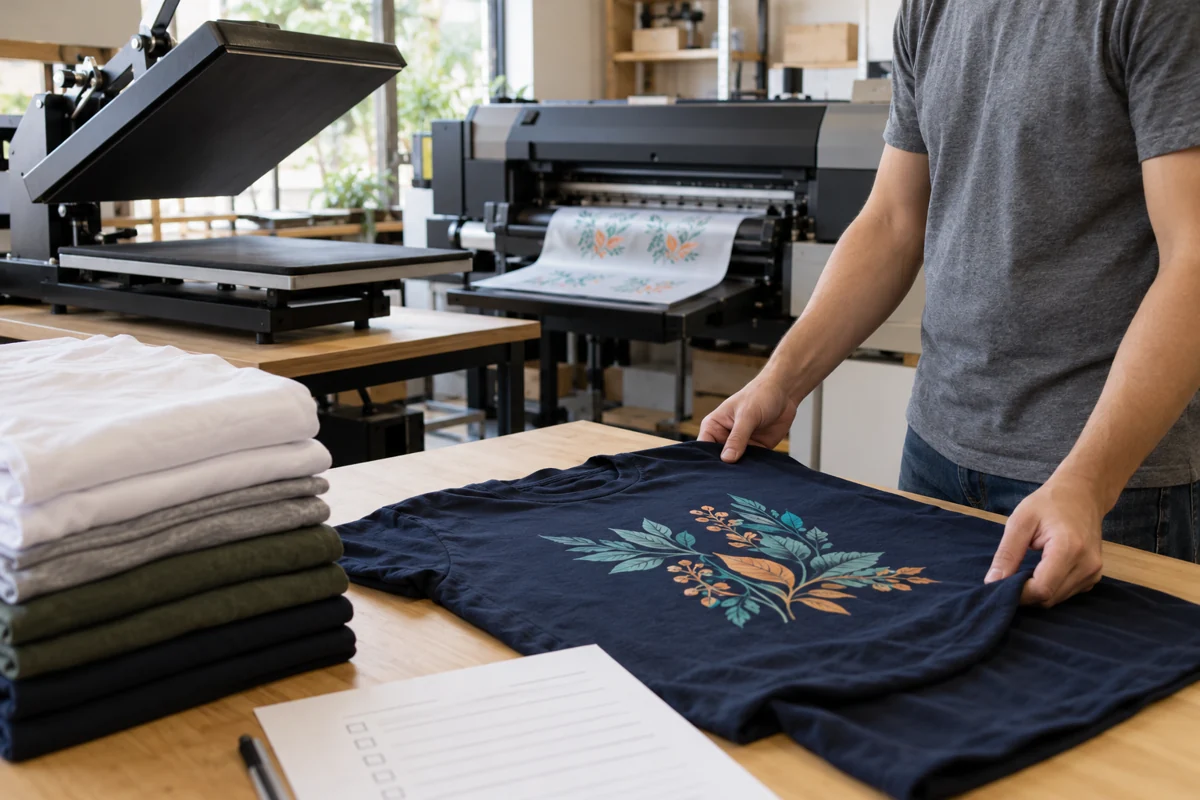
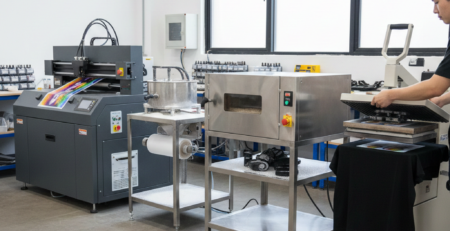
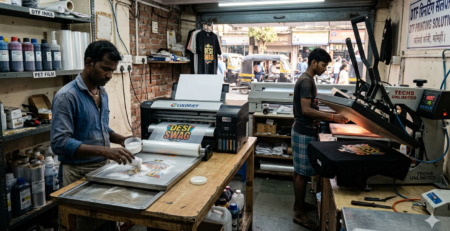
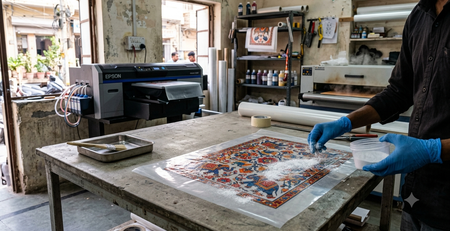
A garment DTF workflow combines artwork, a compatible printer and ink system, transfer film, adhesive application, curing and garment transfer. RIP software prepares the print job within that system. The final garment also depends on the materials and physical processing.
Artwork software and a RIP have different roles. A design application can create or edit the image, while the supported RIP and driver handle the production settings required for the printer. Confirm the complete supplied workflow rather than assuming any design application can replace it.
Avoid a mismatch before buying
A mismatched edition or driver can leave a feature unavailable even when the brand name looks right. Record the exact printer model, configuration and connection requirements, then ask which software edition and version support that setup.
Compatibility is more specific than a printhead name. “XP600” or “Epson-based” alone does not identify the full printer, controller and ink-channel configuration. Get the actual supported driver and setup confirmed.
Hardware and operating-system checks
- The exact printer model and the supported driver or supplied configuration.
- The intended software version, edition, print width and number of supported devices.
- The current operating-system, computer and connection requirements for that version.
- The approved ink, media and colour workflow, including who supplies the setup and profiles.
- The installation, activation and support arrangement.
Use the vendor’s current documentation for the quoted version. Do not assume that every edition supports the same operating system or that a generic computer specification will handle every file and queue.
Features worth demonstrating
Colour workflow
Ask how the supplied profiles and print settings match the printer, ink and film. Compare a processed transfer on the intended garment, not only a screen preview. Software cannot guarantee a fluorescent appearance or an exact brand-colour match from an ordinary preview.
White-layer control
Check how the edition creates and previews the white layer, handles transparency and controls edges where those functions are supported. The settings are job-processing controls, not an instruction to mix white and CMYK inks together.
Detail and coverage
Use representative small text, fine lines, gradients and any proposed halftone artwork. A halftone option can change coverage, but it does not automatically certify breathability or make every tiny dot printable. Validate the transferred sample.
Layout and job queues
Demonstrate the supported nesting, copy, queue, repeat-order or hot-folder tools you actually need. Measure whether they reduce the work in your shop. Do not assume every licence includes every automation feature.
File handling
Test your normal file sizes and supported formats, including transparency where needed. Confirm that the intended dimensions and details survive import. A clean source file matters more than simply increasing a resolution number.
Named printer + driver + edition + operating-system requirements.
Representative artwork → supported workflow → inspected garment sample.
Written activation, device, upgrade, recovery and assistance terms.
Keep the tested settings and the written supply details with the installation record.
Test the tasks your operator performs
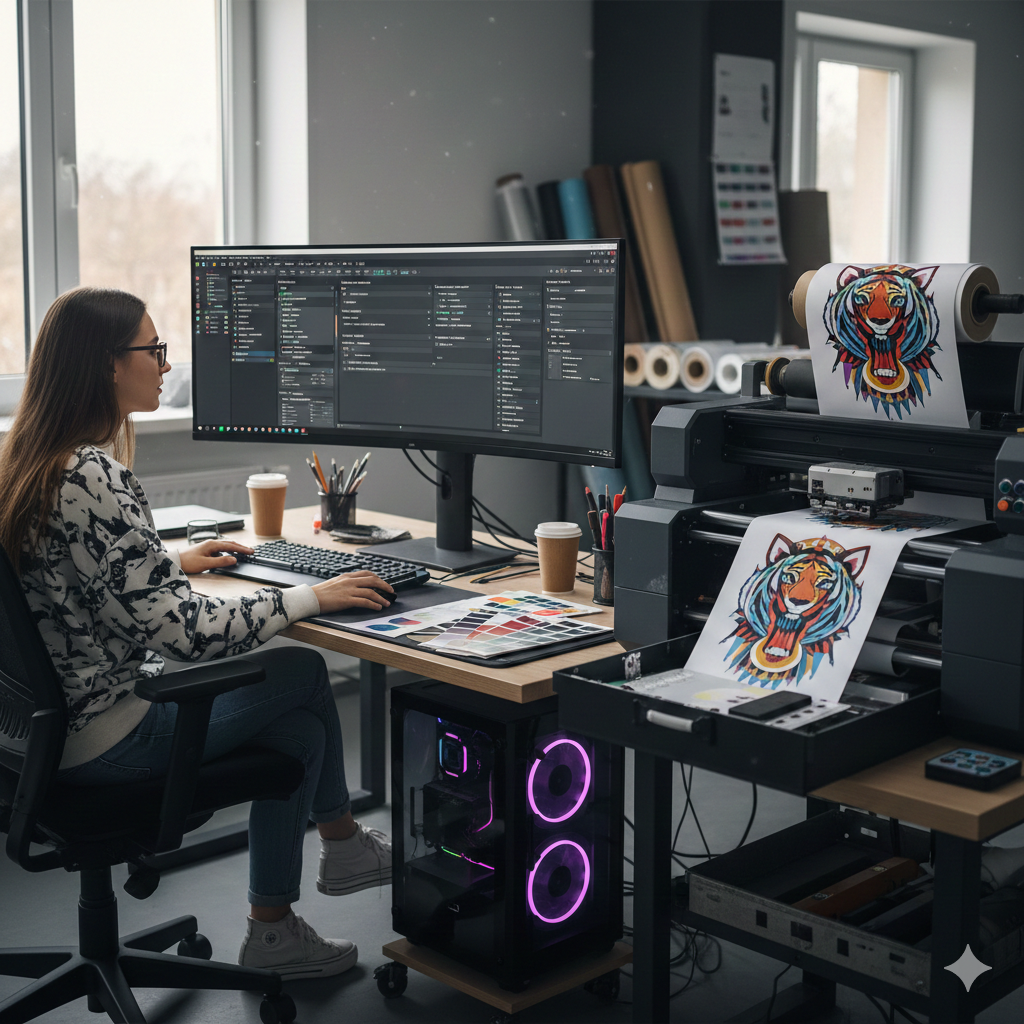
Ask the operator to import a normal order, set the size, check the white layer, arrange copies, save the job and repeat it. Include an artwork correction and a queue change. A short demonstration can reveal more about usability than a long feature list.
Save approved templates and settings where the software permits. Keep a clear process for reviewing artwork before a job reaches the printer.
Support and updates
Confirm who installs the software, provides the supported setup and helps with a failed activation or computer replacement. Ask which updates or upgrades are included and how a working configuration is backed up or restored.
Do not assume an update automatically supplies a suitable profile for every new ink or film. Keep a known-good job record and validate changes before using them on a customer batch.
Separate licence terms from activation method
Ask whether the quoted licence is perpetual, subscription-based or supplied under another stated arrangement, and what that includes. A dongle is an activation method; it does not by itself define the pricing model or guarantee that a licence can move freely between computers.
Confirm the named edition, version, supported devices, activation method, included assistance, upgrade terms and recovery or transfer policy. Keep those details in writing rather than assuming that a system crash guarantees a free replacement.
Evaluate the exact supplied edition
Digital Factory is one software family to investigate through its official documentation and supported configurations. The CADlink / Digital Factory catalogue listing is a starting point for confirming the actual supplied version, edition, printer driver and activation arrangement.
Compare another package only when it supports the same intended job and printer. A brand-only ranking is less useful than proof that the quoted edition handles your requirements.
A practical evaluation job
- Choose artwork representing the work you sell: text, colour, transparency and detail at the final size.
- Confirm the supported setup and a sound printer nozzle check before the comparison.
- Use the intended ink, film, adhesive, cure and garment-transfer process.
- Inspect colour, white edges, detail, size and the finished feel under consistent conditions.
- Record preparation time, usable layout, accepted output and any rejected pieces.
- Save the approved job and verify that the operator can repeat it.
For a compatible test workflow, keep the DTF CMYK ink, DTF PET film sheets and DTF adhesive powder consistent with the approved system. Changing supplies halfway through can obscure the reason for a result.

Make repeat orders easier
Keep organised job files, approved artwork, profiles and settings. Follow the vendor’s backup and update guidance. Use supported formats that preserve the required detail and transparency rather than declaring one format the best for every job.
Maintenance and transfer quality remain separate responsibilities. A RIP does not repair missing nozzles, physically apply powder evenly or make an unsuitable garment compatible.
Choose a supported, tested workflow
Good software for DTF printing fits the actual printer, operator and orders. Confirm compatibility, demonstrate the required functions, inspect a physical sample and keep the licence and support details. That gives you a more reliable decision than an unverified promise of instant quality or guaranteed business growth.
Official documentation
Use the Fiery Digital Factory documentation and the release notes for the actual quoted version to check supported requirements. Vendor features and licence scope vary by edition; confirm the supplied configuration before ordering.


LEAVE A COMMENT