
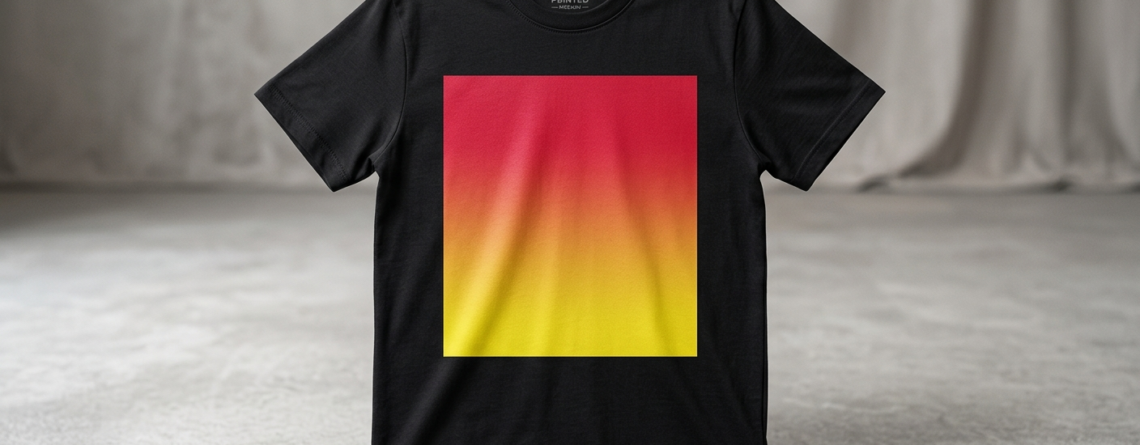
Gradient Designs DTF Printing:10 Easy Step-by-Step Guide
Gradient designs for DTF printing are one of the most attractive styles in modern garment printing. If you’ve ever seen a smooth color fade from red to yellow or a soft sunset effect on a t-shirt, that’s a gradient.
But here’s the truth—creating perfect gradient designs for DTF printing is not always easy. Many beginners face issues like banding, dull colors, or rough transitions.
Chat with our team for printers, consumables, film, powder and business setup guidance.
The good news? Once you understand the basics, it becomes simple and repeatable. This guide will walk you through everything in a practical way.
Essential Tools and Software Needed
Before you start working on gradient designs for DTF printing, you need the right tools.
Software:
- Adobe Photoshop (best for raster gradients)
- CorelDRAW (great for vector work)
- Illustrator
Hardware:
- A reliable DTF printer
- Heat press machine
- Quality films and inks
Recommended printers:
- 🔵 ProlificGeeks DTF Printer L1800
- 🔵 XP600
- 🔵 i3200
These printers handle gradients better due to smoother ink distribution.
Step 1: Setting Up Your Canvas and Color Mode
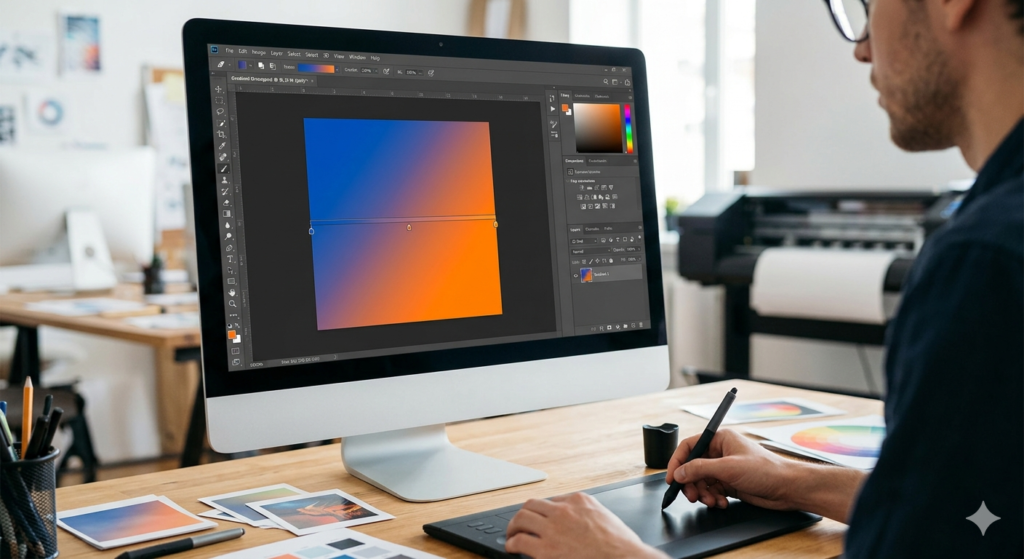
Always start correctly. This step saves you from many problems later.
- Set resolution to 300 DPI
- Use CMYK color mode
- Canvas size based on print area
Why CMYK? Because gradient designs for DTF printing need accurate color output. RGB looks brighter on screen but prints differently.
Tip:
Always keep extra margin around your design to avoid cut-off issues.
Step 2: Creating Basic Gradients
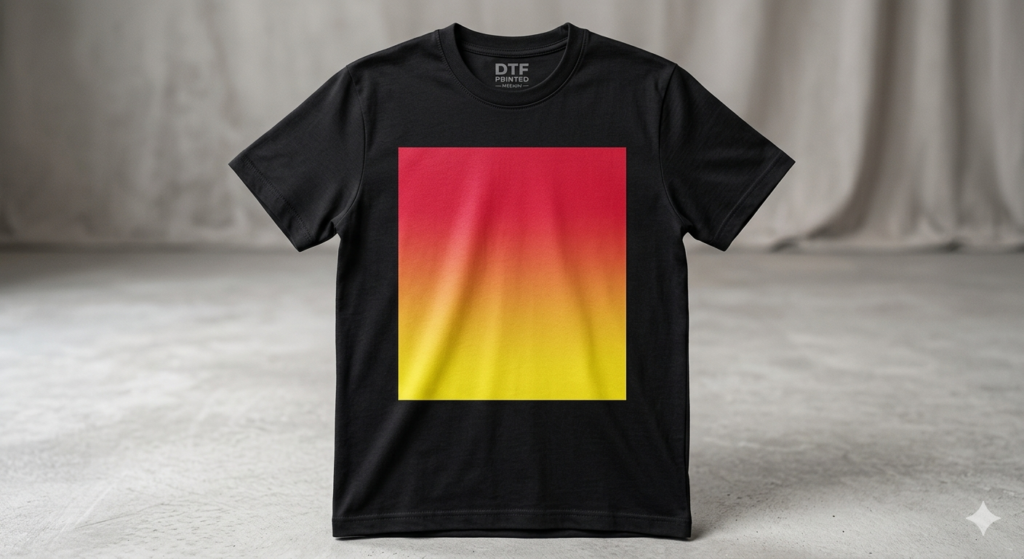
Now comes the fun part.
In Photoshop:
- Select Gradient Tool
- Choose two colors
- Drag across canvas
You’ll get a smooth transition instantly.
Types of gradients:
- Linear (straight fade)
- Radial (circular fade)
- Angular (rotating effect)
Start simple. Don’t overcomplicate early designs.
When creating gradient designs for DTF printing, always zoom in and check transitions. If you see lines or breaks, fix them immediately.
Step 3: Advanced Gradient Techniques (Halftones, Layering)
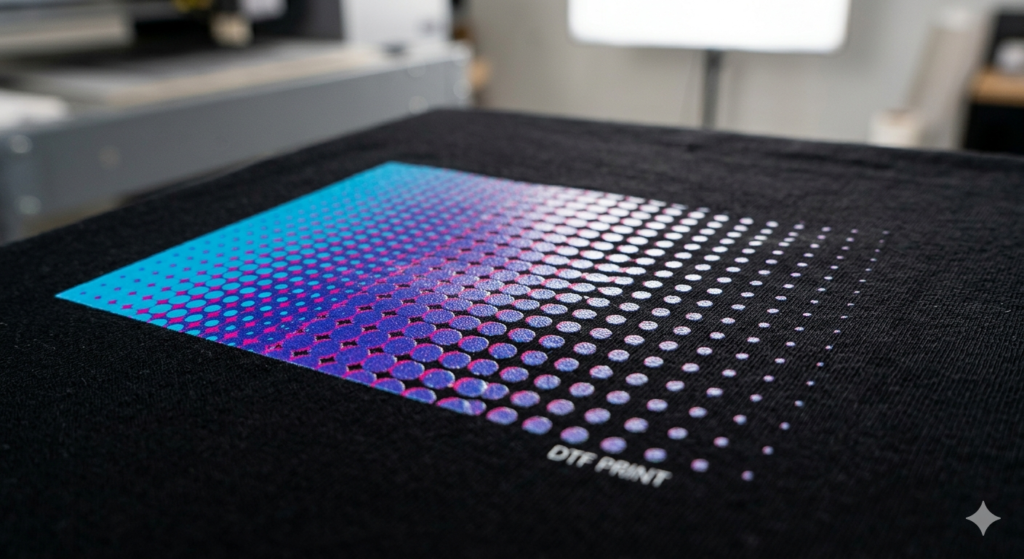
Once you understand basics, try advanced techniques.
1. Halftone Gradients
Used to avoid ink overload.
- Convert gradient into dots
- Smaller dots = lighter shade
- Bigger dots = darker shade
This method is widely used in professional DTF printing.
2. Layering Gradients
Instead of one gradient, use multiple layers.
Example:
- Base gradient (blue → purple)
- Overlay gradient (white → transparent)
This creates depth and richness.
Gradient designs for DTF printing look more premium when layering is used correctly.
DTF-Specific Adjustments (White Underbase, Resolution)
DTF printing is different from normal printing.
White Underbase:
White ink sits below your colors.
If not adjusted properly:
- Gradients look patchy
- Colors lose smoothness
What to do:
- Reduce white underbase in gradient areas
- Use soft edges
Resolution:
Low resolution = visible lines
High resolution = smooth blending
Printers like 🔵 XP600 and 🔵 i3200 handle fine gradients much better.
Common Issues and Fixes for Gradients
Problem 1: Banding (visible lines)
Fix:
- Increase DPI
- Use noise filter
Problem 2: Dull Colors
Fix:
- Adjust color profile
- Use high-quality inks
Problem 3: Ink Bleeding
Fix:
- Reduce ink limit
- Adjust heat press timing
Gradient designs for DTF printing need careful balance between ink and detail.
Printer Settings and Calibration
This is where many people go wrong.
Important settings:
- Pass count (higher = smoother)
- Ink limit control
- Proper ICC profile
Calibration Tip:
Print a gradient test strip before final printing.
Machines like 🔵 ProlificGeeks DTF Printer L1800 give better control when calibrated properly.
Testing and Proofing Your Design
Never skip this step.
- Print small samples
- Check color transition
- Compare with screen
Even professionals test every gradient design before bulk printing.
Gradient designs for DTF printing behave differently on fabric than on screen.
Printing and Heat Transfer Process
Once your design is ready:
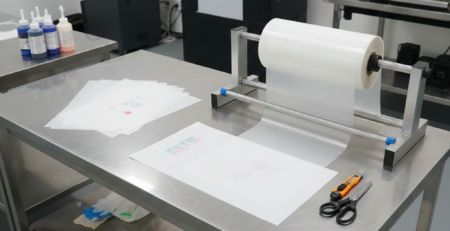
- Print on DTF film
- Apply adhesive powder
- Cure powder
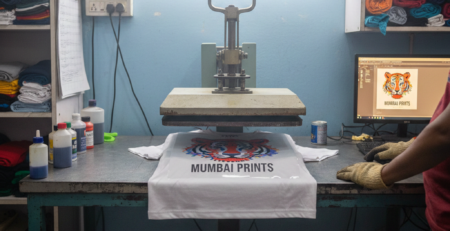
- Heat press onto fabric
Heat press settings:
- Temperature: ~160°C
- Time: 10–15 seconds
Too much heat can ruin gradients by spreading ink.
Pro Tips for Professional Results
- Use soft gradients, not harsh ones
- Avoid too many colors in one design
- Always test on actual fabric
- Keep your printer clean
- Use quality films and powder
Also, try combining gradients with textures. This gives a unique look that stands out.
Gradient designs for DTF printing improve a lot with practice. Don’t expect perfection on day one.
Conclusion and Next Steps
Creating gradient designs for DTF printing is a skill that grows with time. Start simple. Learn from mistakes. Test often.
Once you master gradients, your designs will look more professional and attractive. This directly improves customer satisfaction and business growth.
Next step?
Try creating a simple 2-color gradient today and print a test sample. That’s how real learning starts.
Product Suggestions
For better results, consider using:
- 🔵 ProlificGeeks DTF Printer L1800
- 🔵 XP600 Printhead
- 🔵 i3200 Printhead
- 🔵 DTF Transfer Films (High Quality)
- 🔵 Premium DTF Inks
These tools help achieve smoother gradient designs for DTF printing.
External References + Credits
Helpful resources:
- PrintIndustry.com
- Fespa.com
- InkJetInsights.com
- ResearchGate
Credit: Information references from Fespa, PrintIndustry, and other public sources.


LEAVE A COMMENT