
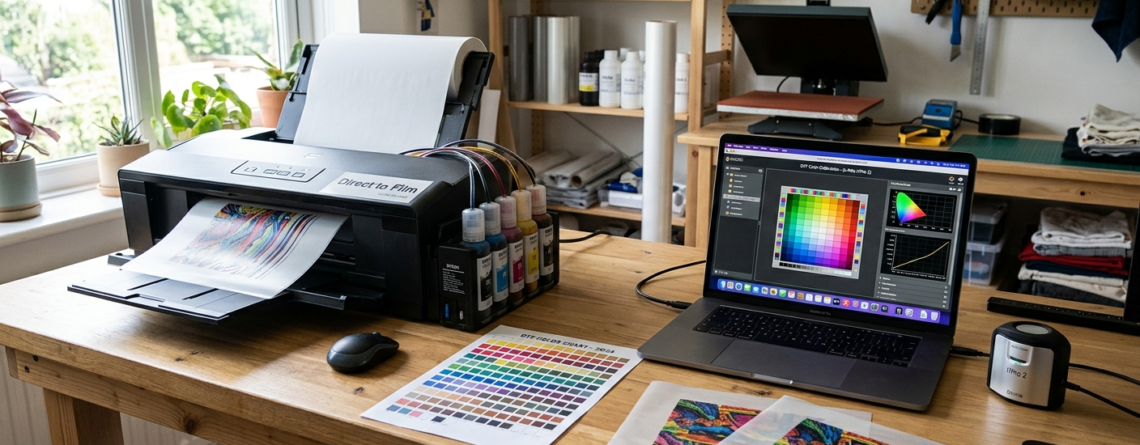
DTF Color Management Guide: 10 Secret Tips for Perfect Prints
If you’re new to DTF printing, getting the right colors can feel confusing. What you see on your screen often looks very different on fabric. That’s where this DTF color management guide helps.
Color management simply means controlling how colors move from your design to the final print. Without it, prints can look dull, too dark, or completely off.
Chat with our team for printers, consumables, film, powder and business setup guidance.
Think of it like cooking. Even if you have good ingredients, the recipe matters. In DTF printing, color settings are your recipe.
Basics of Color Theory
Before diving deeper into this DTF color management guide, you need a basic understanding of colors.
There are three main ideas:
- Primary colors – Red, Blue, Yellow
- Secondary colors – Made by mixing primary colors
- Color balance – Adjusting brightness, contrast, and saturation
In printing, small color changes make a big difference. For example, a slightly wrong red can look orange on fabric.
Tip: Always design with the final output in mind, not just what looks good on screen.
Color Spaces in DTF (RGB, CMYK, LAB)
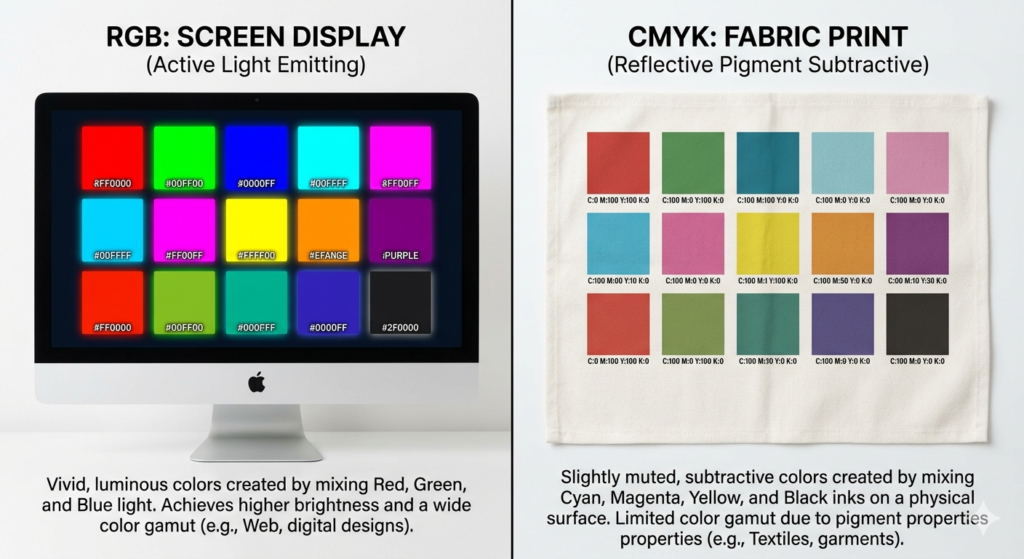
Understanding color spaces is a key part of this DTF color management guide.
RGB
Used for screens (phones, laptops).
Brighter and more vibrant.
CMYK
Used for printing.
More realistic but less bright than RGB.
LAB
Advanced color space. Used for precise color correction.
Most beginners make one mistake:
They design in RGB and print directly without conversion.
Result? Colors look faded.
👉 Always convert your design to CMYK before printing.
Equipment Calibration
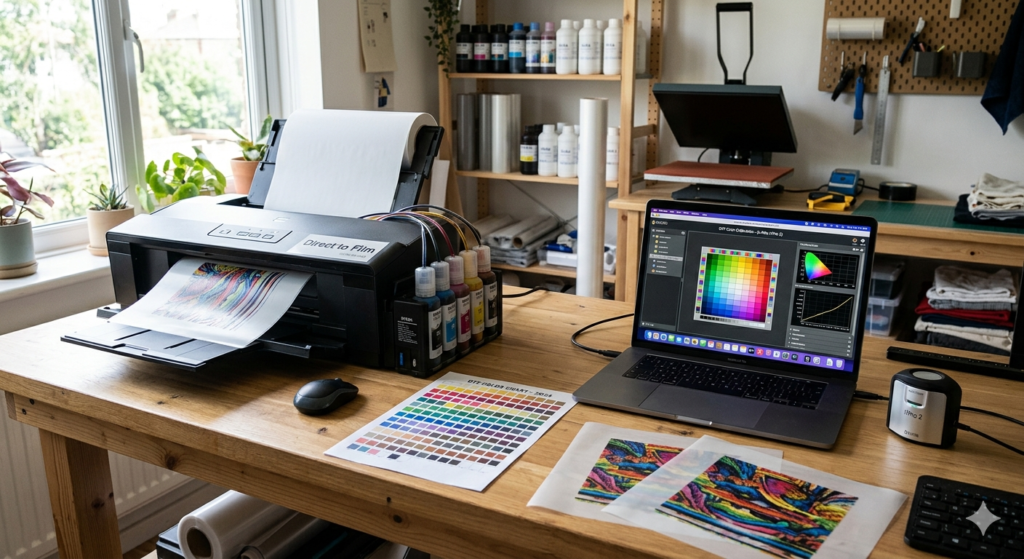
Even the best settings won’t work if your devices are not calibrated.
Calibration means making sure your screen and printer show accurate colors.
Why it matters:
- Avoid guesswork
- Get consistent results
- Save ink and time
If you’re using machines like 🔵 ProlificGeeks DTF Printer L1800 or 🔵 XP600, calibration becomes even more important because high-quality printers show even small color differences.
Simple tip:
Calibrate once every 2–3 weeks if you print regularly.
Monitor and Printer Setup
This is where most beginners struggle.
Your monitor might be too bright. Your printer might be too dark.
Monitor Setup:
- Reduce brightness to 60–70%
- Use neutral color mode
- Avoid “vivid” or “gaming” settings
Printer Setup:
- Use correct ink settings
- Select proper media type
- Match RIP software settings
Machines like 🔵 i3200 printers perform best when settings are aligned with ICC profiles (more on that below).
ICC Profiles and Usage
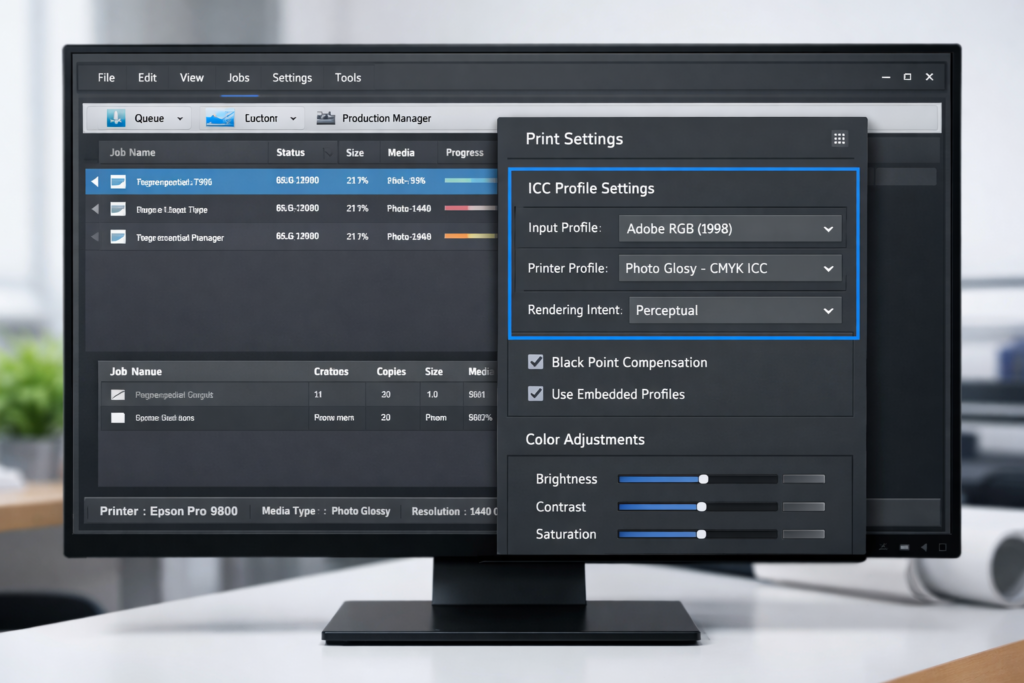
This is the heart of any DTF color management guide.
What is an ICC Profile?
It’s a file that tells your printer how to print colors correctly.
Without it, your printer is just guessing.
Why ICC Profiles Matter:
- Fix color mismatch
- Improve skin tones
- Enhance dark shades
Example:
If your black prints look grey, your ICC profile is likely wrong.
Many DTFshop.in setups provide ready-made ICC profiles for printers like 🔵 XP600 and 🔵 i3200.
Tip:
Always use ICC profiles made specifically for your ink + film + printer combination.
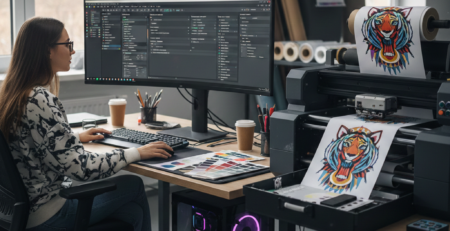
Design Software Configuration
Your design software also plays a big role in this DTF color management guide.
Popular tools:
- Photoshop
- CorelDRAW
- Illustrator
Important settings:
- Use CMYK mode
- Embed ICC profile
- Avoid over-saturation
Common mistake:
Designing in RGB and exporting directly.
Better approach:
- Design in RGB (for flexibility)
- Convert to CMYK before printing
Workflow for DTF Printing
Let’s simplify everything into a real workflow.
Step-by-step:
- Create design (RGB)
- Convert to CMYK
- Apply ICC profile
- Send to RIP software
- Print test sample
- Adjust if needed
- Final print
If you’re using setups like 🔵 ProlificGeeks DTF Printer L1800, this workflow becomes smooth once configured correctly.
This structured process is the backbone of any good DTF color management guide.
Common Issues and Fixes
Every beginner faces these problems:
1. Colors look dull
Fix: Check CMYK conversion and ICC profile
2. Print too dark
Fix: Lower ink density in RIP software
3. Skin tones look unnatural
Fix: Use proper ICC profile
4. Colors shift after printing
Fix: Calibrate monitor and printer
5. Black looks grey
Fix: Adjust black channel settings
Machines like 🔵 XP600 and 🔵 i3200 are powerful, but they need correct tuning.
Testing and Quality Control
Never skip testing. It saves money.
What to test:
- Color charts
- Gradients
- Skin tones
- Dark areas
Print small samples before bulk printing.
Example:
A small test print can save a full roll of film.
This step is often ignored but is critical in any DTF color management guide.
Best Practices Checklist
Here’s a quick checklist you can follow daily:
✔ Use CMYK for final prints
✔ Always apply ICC profile
✔ Calibrate devices regularly
✔ Test before bulk printing
✔ Keep lighting consistent
✔ Avoid over-editing colors
✔ Maintain printer regularly
If you follow these steps, your results will improve fast.
Conclusion and Resources
Color management in DTF printing is not complicated. It just needs the right approach.
Start simple. Focus on:
- Correct color space
- Proper ICC profile
- Regular testing
With time, you’ll develop an eye for color accuracy.
This DTF color management guide is your starting point. Practice is what makes it perfect.
Product Suggestions
Here are some commonly used DTF printing setups:
🔵 ProlificGeeks DTF Printer L1800
🔵 XP600
🔵 i3200
🔵 DTF Transfer Film Rolls
🔵 DTF Textile Pigment Ink
These are widely used by beginners and small businesses for consistent results.
External References + Credits
For deeper understanding, you can explore:
- PrintIndustry.com
- Fespa.com
- InkJetInsights.com
- ResearchGate
Credit: Information references from Fespa, PrintIndustry, and other public sources


LEAVE A COMMENT