
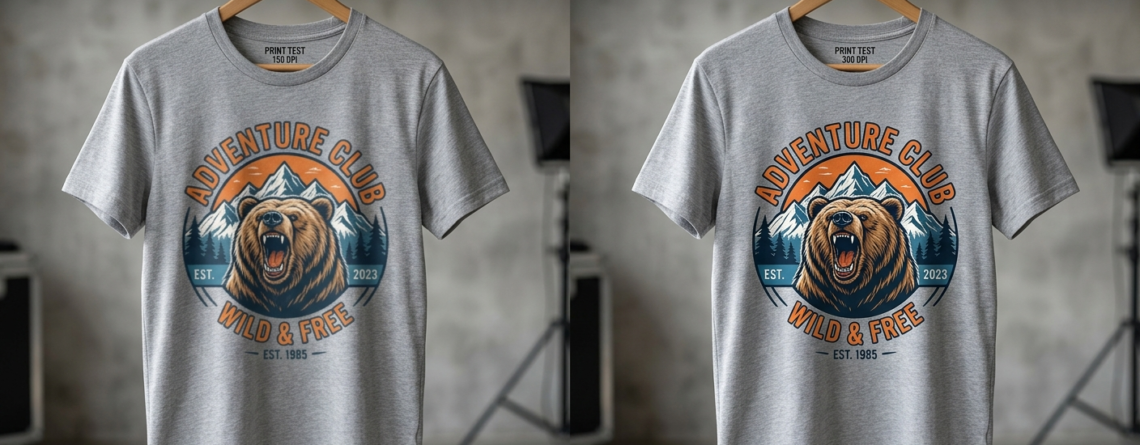
DTF Printing Resolution Guide: DPI Settings for Perfect Prints 2026
If your DTF prints look slightly blurry or not as sharp as expected, the problem is often not your printer—it’s your resolution.
Many beginners struggle with unclear edges, faded details, or pixelated designs. Most of the time, it comes down to incorrect DTF printing DPI settings.
Chat with our team for printers, consumables, film, powder and business setup guidance.
Here’s the truth: even the best printer cannot fix a low-resolution design.
In this guide, you’ll learn:
- What DPI really means
- The best DTF printing DPI settings
- How to prepare artwork properly
- How to avoid common mistakes
What is DPI?
DPI stands for dots per inch. It simply means how many ink dots are printed in one inch.
More dots = more detail.
DPI vs. PPI
- DPI (Dots Per Inch) → used in printing
- PPI (Pixels Per Inch) → used in digital screens
Think of it like this:
- PPI = what you design
- DPI = what gets printed
Role in Printing Quality
If your DTF printing DPI settings are too low:
- Edges look rough
- Colors look flat
- Small text becomes unreadable
Higher DPI gives:
- Smooth gradients
- Sharp lines
- Professional finish
Why Resolution Matters in DTF Printing
Impact on Print Sharpness
DTF is known for high-detail printing. But it depends heavily on resolution.
If your file is low quality, even a powerful printer like
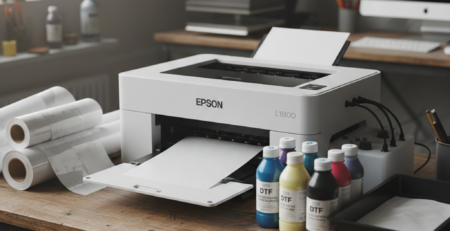
🔵 ProlificGeeks DTF Printer L1800
won’t deliver clean output.
Common Problems with Low DPI
- Blurry logos
- Jagged edges
- Washed-out prints
- Pixelated artwork
Benefits of Optimal Settings
Using correct DTF printing DPI settings gives:
- Crisp details
- Accurate colors
- Better fabric adhesion
- Professional results
Recommended DPI Settings
Standard Setting
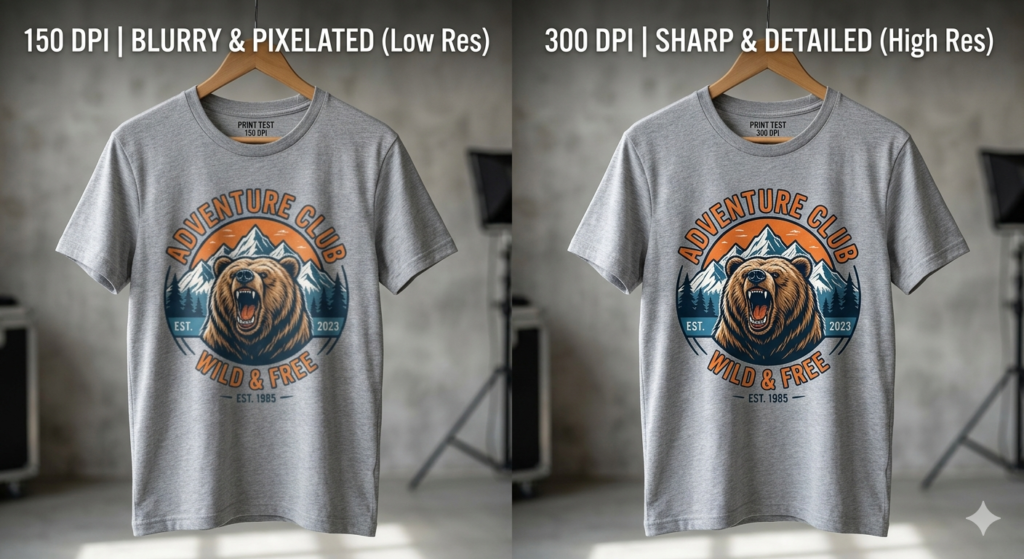
✔ 300 DPI at final print size
This is the sweet spot. Almost all professional prints use this.
Minimum Acceptable
✔ 200 DPI
Below this, quality drops fast.
Printer Resolution Example
Most DTF printers work at:
- 1440 x 720 DPI
- 1440 x 1440 DPI
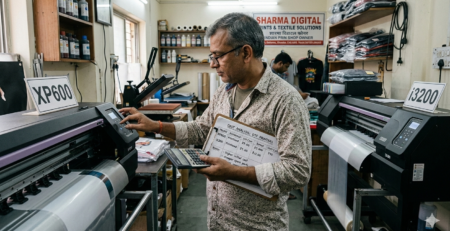
Machines using printheads like
🔵 XP600
🔵 i3200
can produce excellent detail when fed proper artwork.
👉 Important: Printer DPI and artwork DPI are different. Both must be correct.
DTF vs. Other Printing Methods
| Method | Recommended DPI | Detail Level | Use Case |
|---|---|---|---|
| DTF | 300 DPI | High | Custom apparel |
| DTG | 300 DPI | High | Cotton fabrics |
| Screen Print | 150–200 DPI | Medium | Bulk prints |
Key Difference
- DTF requires cleaner digital files
- Screen printing tolerates lower resolution
- DTG is similar but more fabric-sensitive
Preparing Artwork for DTF
This is where most people go wrong.
Design Size Rules
Always design at actual print size.
Example:
- If print = 10 inches wide
- Your file must be 10 inches at 300 DPI
Software Settings
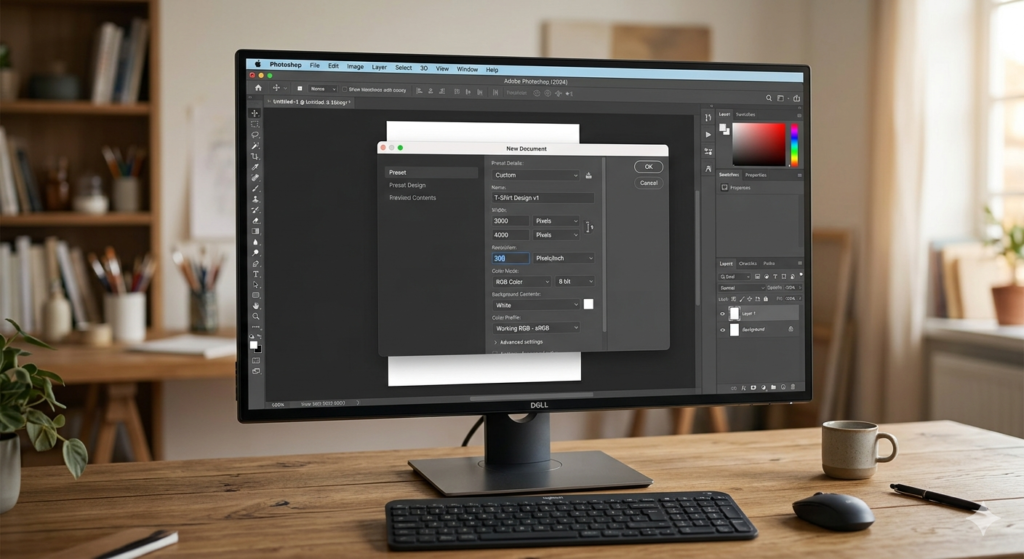
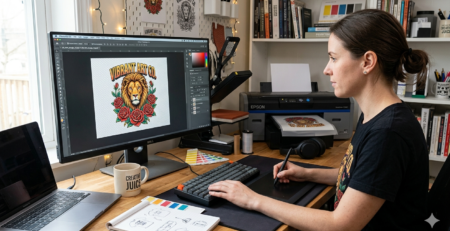
Use tools like:
- Photoshop
- CorelDRAW
Set:
- Resolution: 300 DPI
- Color Mode: RGB (for DTF workflows)
File Formats
Best formats:
- PNG (transparent background)
- TIFF (high quality)
Avoid:
- Low-quality JPGs
Practical Tip
Zoom your design to 100%.
If it looks blurry on screen, it will print worse.
Printer and RIP Software Settings
Even perfect artwork needs correct printer settings.
Resolution Configuration
Set RIP software to match your printer capability:
- 1440 × 720 for speed
- 1440 × 1440 for high detail
Ink Density & Speed
- High speed = lower detail
- High quality mode = slower but sharper
Machines like
🔵 A3 DTF Printer XP600 Setup
perform best when balanced between speed and quality.
ICC Profiles
These control color output.
Always:
- Use correct ICC profile
- Match film and ink type
Troubleshooting Resolution Issues
Blurry Prints
Possible reasons:
- Low image DPI
- Wrong scaling
- Poor RIP settings
Fix:
Re-export file at 300 DPI and print again.
Pixelation
Cause:
- Enlarging small images
Fix:
Never stretch images beyond original size.
Testing Workflow
Do this before bulk printing:
- Print small sample
- Check edges and text
- Adjust DPI if needed
This saves time and material.
Best Practices Checklist
✔ Always use 300 DPI
✔ Design at actual print size
✔ Use PNG or TIFF files
✔ Avoid resizing small images
✔ Use proper RIP settings
✔ Test before final print
Quick Reference Chart
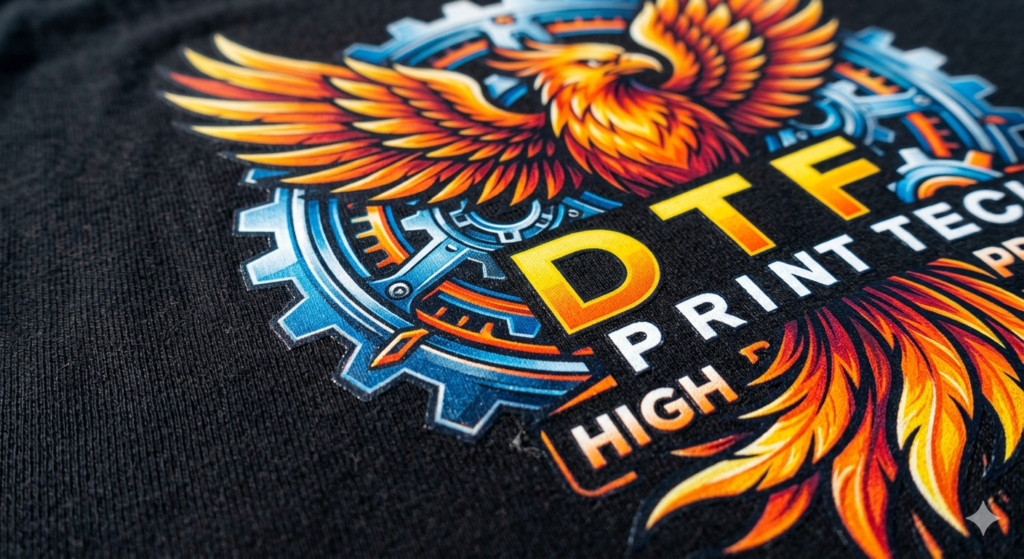
| Print Size | Recommended Resolution |
|---|---|
| Small logo | 300 DPI |
| T-shirt print | 300 DPI |
| Large design | 300 DPI |
Conclusion
Getting the right DTF printing DPI settings is not complicated—but it’s critical.
If you remember just three things:
- Always use 300 DPI
- Design at actual size
- Never upscale low-quality images
You’ll avoid 90% of printing issues.
Before starting bulk production, always run a test print. It’s a small step that saves big losses.
FAQs
1. What is the best DPI for DTF printing?
300 DPI is the industry standard for best results.
2. Can I print with 150 DPI?
Not recommended. You will lose detail and sharpness.
3. Does higher DPI always mean better quality?
Up to a limit. Beyond 300 DPI, difference is minimal for DTF.
4. Why do my prints look blurry?
Most likely incorrect DTF printing DPI settings or low-quality artwork.
5. Which printer gives best resolution?
Printers with heads like 🔵 i3200 provide excellent detail when settings are correct.
Product Suggestions
- 🔵 ProlificGeeks DTF Printer L1800
- 🔵 XP600 Printhead Printer
- 🔵 i3200 High-Speed DTF Printer
- 🔵 A3 DTF Printer XP600 Setup
- 🔵 DTF Transfer Film Roll Premium
External References + Credits
- PrintIndustry.com
- Fespa.com
- InkJetInsights.com
- ResearchGate
Credit: Information references from Fespa, PrintIndustry, and other public sources.

LEAVE A COMMENT