
1. DTF Print Mastery: How to Avoid Ink Smudging in DTF Print
Table of Contents
Introduction
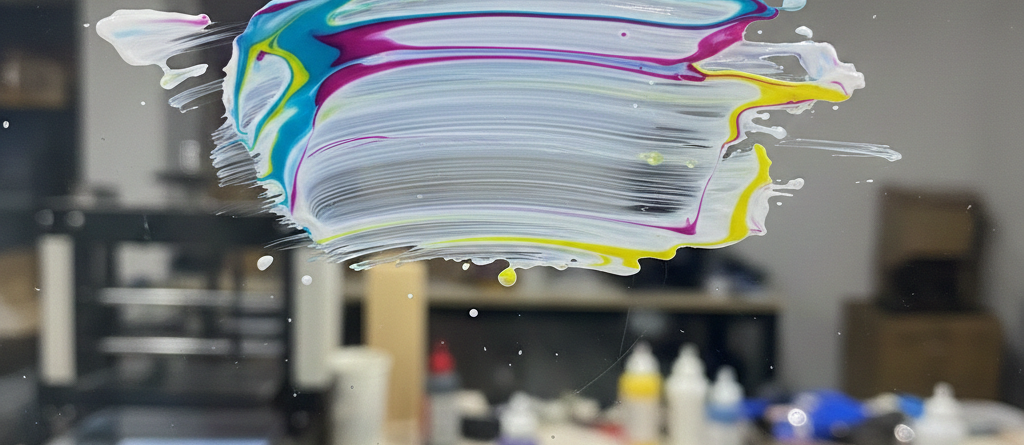
DTF Print ink smudging is one of the most common problems faced by beginners and even experienced printers. A design may look perfect on the screen, but once printed, the ink spreads, blurs, or transfers unevenly. This issue can ruin garments, waste ink, and slow down production.
Hook: Common DTF ink smudging issues
Ink smudging is one of the most frustrating problems in DTF Print.
You finish printing. The design looks sharp.
Then suddenly — ink spreads, edges blur, and colors mix.
Chat with our team for printers, consumables, film, powder and business setup guidance.
Many beginners think this is an ink problem.
In reality, smudging is often caused by small process mistakes.
Thesis: Key prevention strategies
Avoiding smudging in DTF Print depends on correct preparation, printing control, curing, and handling.
Fixing just one step rarely works.
You need a complete workflow.
Overview of benefits
When smudging is controlled:
- Prints look sharp and professional
- Less reprinting and ink waste
- Better wash durability
- Faster production with fewer errors
Understanding Ink Smudging in DTF
Causes of smudging
In DTF Print, ink smudges mainly due to:
- Excess ink output
- Incorrect film type
- Low curing temperature
- Touching prints before curing
- High humidity
Unlike screen printing, DTF ink sits on film before transfer.
If not handled correctly, it spreads easily.
Impact on print quality
Smudging causes:
- Blurred edges
- Color bleeding
- Poor text clarity
- Rejected customer orders
Professional DTF Print shops lose money when smudging repeats.
Preparation Tips
Proper substrate selection
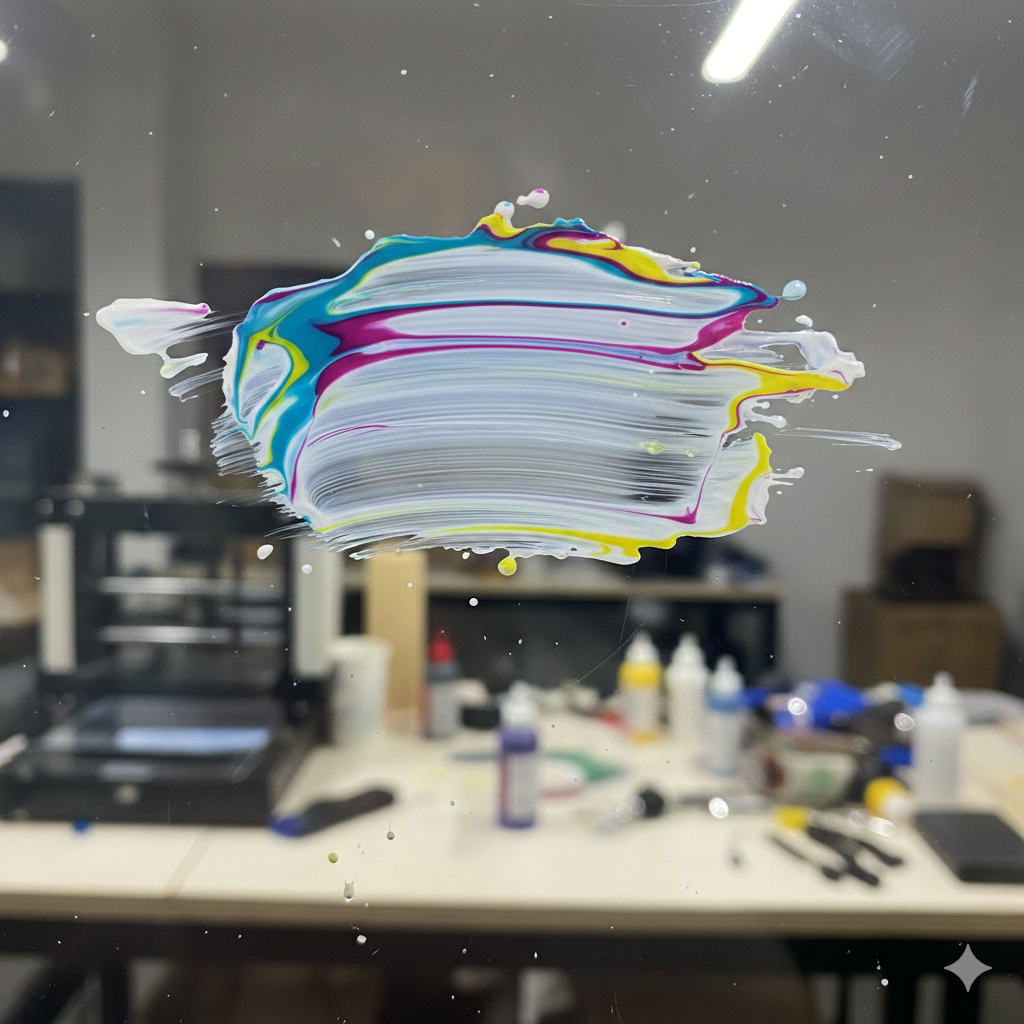
Not all PET films behave the same.
Cheap films absorb ink unevenly.
This increases ink spread.
Reliable films like DTF PET Film – Hot Peel provide controlled ink absorption and cleaner edges.
Surface cleaning techniques
Always clean:
- Film surface
- Printer platen
- Print area
Dust attracts ink moisture.
Even small particles cause smudging during DTF Print.
Ink and film compatibility
Using random ink brands causes chemical mismatch.
High-quality inks such as <span style=”color:blue”>DTF CMYK + White Ink Set</span> work best with recommended films.
Avoid mixing brands unless tested.
Printing Best Practices
Optimal printer settings
Over-inking is a major reason for DTF Print smudging.
Set:
- Lower ink density
- Balanced white ink layers
- Correct resolution (1440 DPI is enough)
More ink does NOT mean better quality.
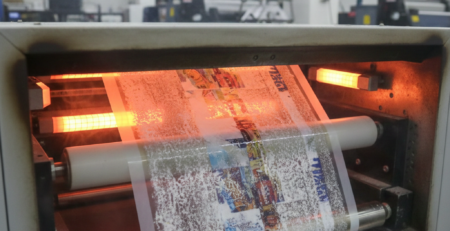
Ink curing methods
Partial curing leads to wet ink.
Use a curing oven or heat press hover method.
Consistent heat ensures ink stays in place.
A compact solution like DTF Curing Oven provides even heat distribution.
Layering sequence
Correct order matters:
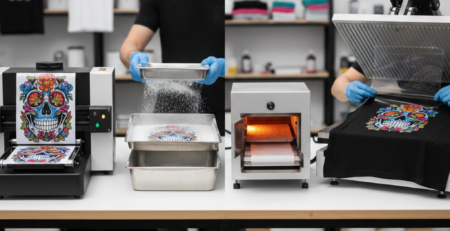
- CMYK layer
- White ink layer
- Adhesive powder
Incorrect layering causes wet surfaces and smudges.
Application Techniques
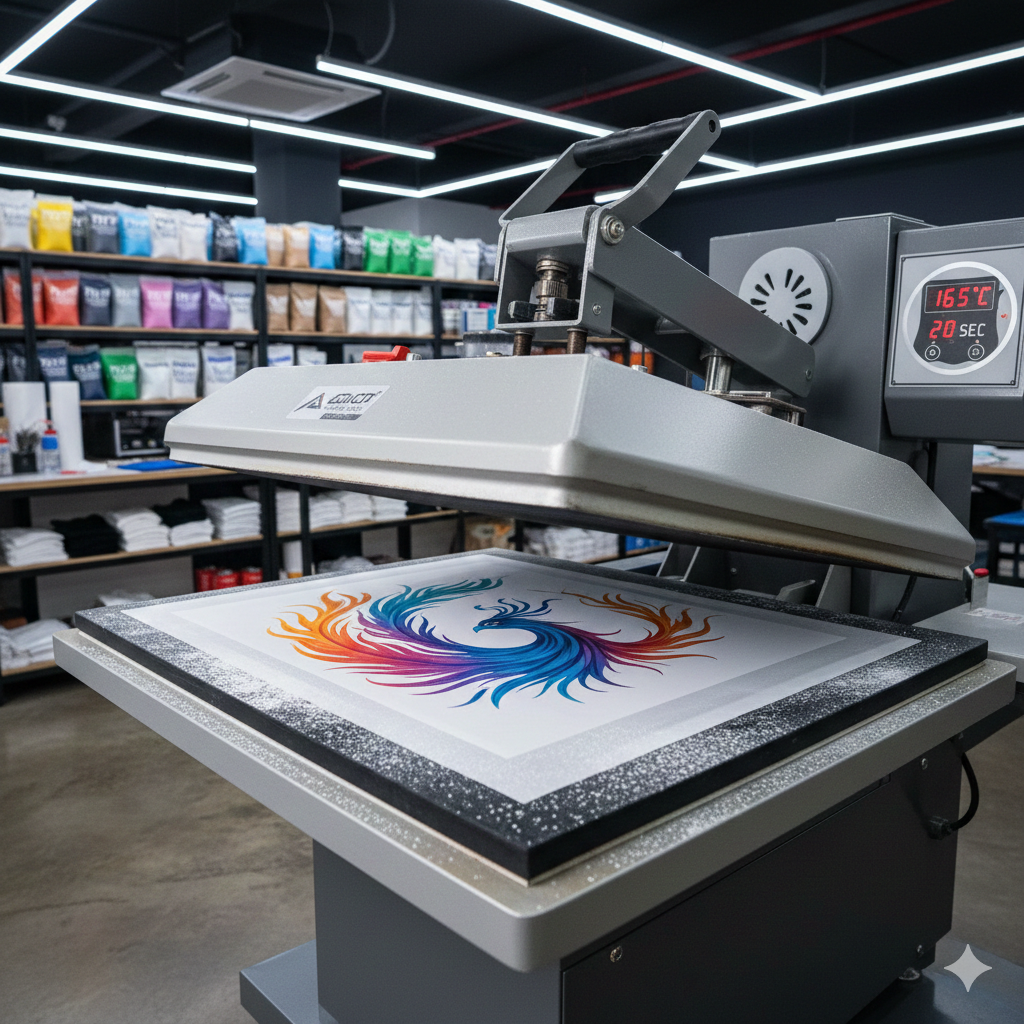
Heat press temperature control
Too low temperature = ink movement
Too high temperature = ink bleeding
Ideal range for DTF Print:
- 150–165°C depending on film
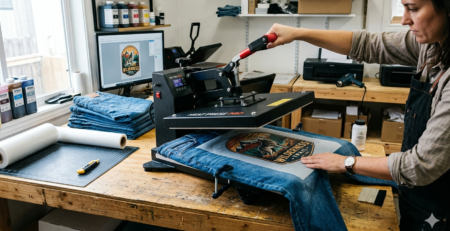
Using a stable press like Automatic Heat Press Machine helps maintain consistency.
Pressure and time settings
Excess pressure pushes ink outward.
Use:
- Medium pressure
- 12–15 seconds press time
Do not rush.
Cooling process
Never peel while hot unless film allows it.
Let the print cool completely.
Hot peeling on wrong film causes smears.
Post-Print Handling
Storage conditions
Store prints:
- Flat
- Dry
- Away from sunlight
Humidity causes ink reactivation.
Handling protocols
Always hold film edges.
Never touch printed area.
Even dry-looking DTF Print can smudge under pressure.
Quality inspection checklist
Before pressing:
- No wet spots
- Clean edges
- Powder evenly melted
This step saves wasted garments.
Advanced Prevention Strategies
Equipment maintenance
Dirty print heads cause uneven ink flow.
Daily:
- Nozzle check
- Head cleaning
Weekly:
- Ink line inspection
Good maintenance improves DTF Print reliability.
Environmental controls
Ideal room conditions:
- Temperature: 20–25°C
- Humidity: Below 55%
High humidity is a silent smudging cause.
Software adjustments
Use RIP software to:
- Limit ink saturation
- Control white ink thickness
- Adjust choke settings
This prevents overloading the film.
Troubleshooting Common Issues
Quick fixes for smudges
- Increase curing time
- Reduce ink density
- Change film batch
- Improve airflow
When to reprint
Reprint if:
- Text edges bleed
- Colors mix
- Ink transfers before pressing
Never press a faulty DTF Print.
Conclusion
Key takeaways summary
To avoid smudging in DTF Print:
- Choose the right film and ink
- Control ink output
- Cure properly
- Handle prints carefully
- Maintain stable environment
Small improvements create big results.
Call to action: Try these tips
Apply these steps in your next DTF Print job.
You will see cleaner prints, fewer errors, and happier customers.
Product Suggestions (Used Naturally)
(All products available at DTFshop.in)
External References + Credits
Helpful reading sources:
Credit: Information references from Fespa, PrintIndustry, and other public sources.


LEAVE A COMMENT